

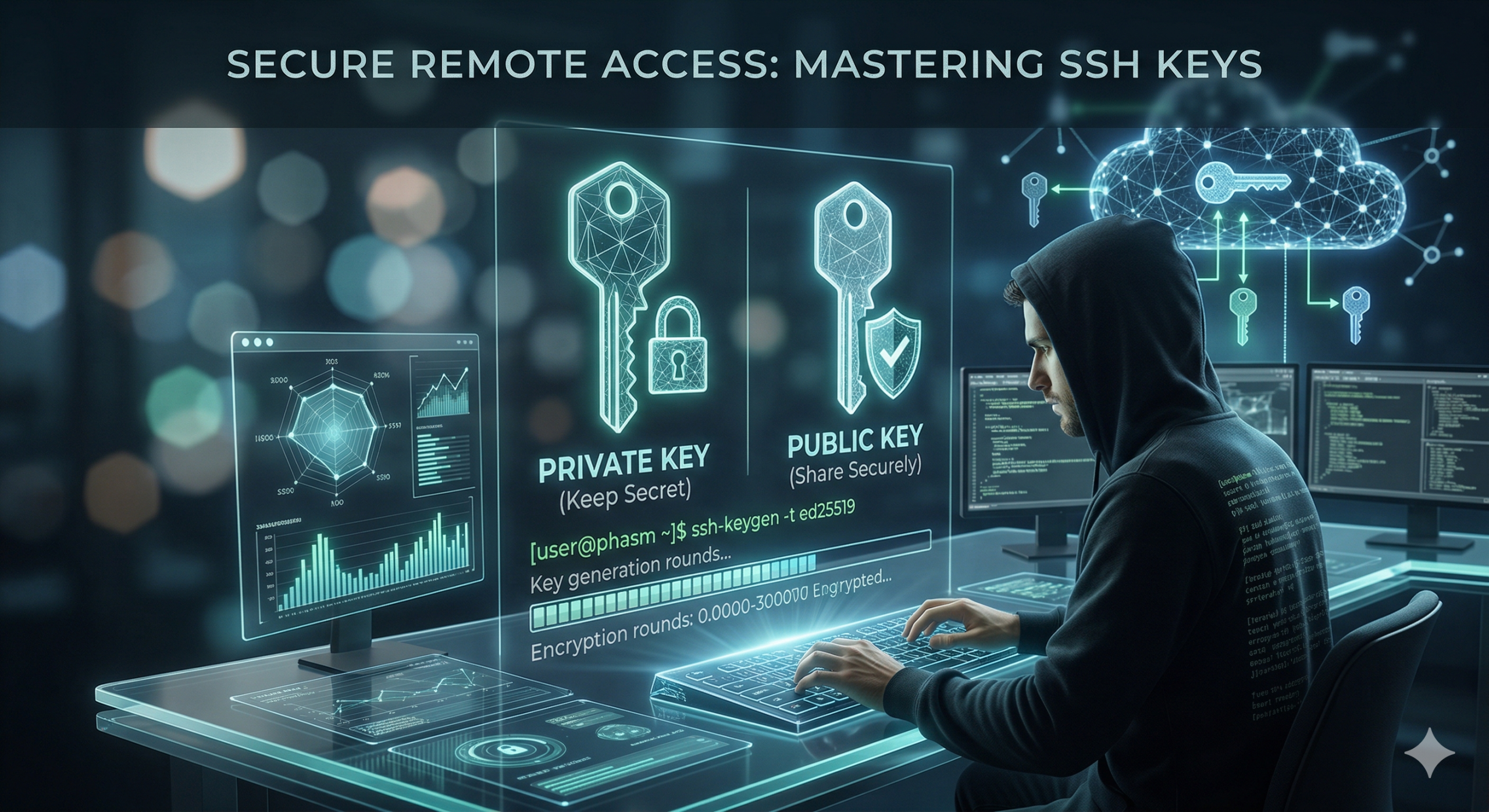
In an era where password-based logins are increasingly vulnerable to brute-force attacks, SSH keys provide a robust, cryptographic alternative for securing your server connections. This guide walks you through generating a high-security Ed25519 key pair—the current gold standard for speed and protection. Whether you are on Linux, macOS, or Windows 10/11, these steps will help you move beyond passwords and streamline your development workflow with the built-in OpenSSH client.
1. Check for Existing Keys
Before creating a new key pair, you should check if you already have keys to avoid accidentally overwriting them.
           [user@phasm ~]$ cd ~/.ssh
[user@phasm .ssh]$ ls -al id_*
-rw------- 1  user  user  1679 Apr  11  2026 id_rsa
-rw-r--r-- 1  user  user   389 Apr  11  2026 id_rsa.pub
If you find older RSA keys (like those above), they should be replaced with modern Ed25519 keys. You can keep the old keys until you are certain the new ones work, or move them to a backup subfolder.
2. Generate a Modern Ed25519 Key
Ed25519 keys offer several advantages over older RSA keys:
- Higher Security
- Smaller File Size
- Faster Generation and Verification
Step-by-Step Generation
Keys are most easily generated via the command line. During this process, you should set a passphrase that is at least as secure as your main password.
Command:
[user@phasm ~]$ ssh-keygen -C "My Key 2026-04-11" -a 100 -t ed25519
-a 100: The number of KDF rounds (100 makes the private key much harder to crack if stolen).-C: A comment to help you identify the key later.
The Process:
- Save location: Press Enter to accept the default path (
~/.ssh/id_ed25519). - Passphrase: Enter and confirm a strong passphrase.
- Verification: Your key is now saved. The public key is
id_ed25519.pub.
To view your public key for copying:
           [user@phasm .ssh]$ cat id_ed25519.pub
ssh-ed25519 AAAAC3NzaC1lZDI1NTE5AAAAIH9kFmr... My Key 2026-04-11
Note: You must copy the entire line when adding it to an authorized_keys file.
3. Applying Usage Restrictions
You can increase security by adding restrictions to specific keys within the ~/.ssh/authorized_keys file on the remote server.
3.1 Restrict by Machine or IP Range
If a key is only used from a specific machine, you can limit its access: from="workstation123.example.com" ssh-ed25519 AAAAC3... from="192.168.0.0/24" ssh-ed25519 AAAAC3...
3.2 Restrict to a Specific Command
To ensure a key can only run one specific task: command="/usr/bin/test" ssh-ed25519 AAAAC3...
3.3 Additional Security Flags
You can disable specific features for a key: no-agent-forwarding,no-port-forwarding,no-X11-forwarding,no-user-rc ssh-ed25519 ...
4. Copying the Key to a Remote Server
To log in using your key, you must transfer the public part. You can do this manually or by using the ssh-copy-id tool:
[user@phasm ~]$ ssh-copy-id user@server
Security Rule: As a general rule, do not use SSH keys to switch between users (e.g., logging directly into root from a standard user account).
5. Logging In with a Specific Key
If you have multiple keys, specify which one to use with the -i flag:
[user@phasm ~]$ ssh -i ~/.ssh/id_ed25519_private user@server
Troubleshooting: If the connection fails, use -v or -vv for debug information.
SSH Config: You can automate this by editing ~/.ssh/config:
           Host myserver
    HostName server.example.com
    User myUsername
    IdentityFile ~/.ssh/id_ed25519_private
    IdentitiesOnly yes
6. Changing the Passphrase
To change the passphrase on an existing key without generating a new one:
[user@phasm ~]$ ssh-keygen -p -f ~/.ssh/id_ed25519
7. Key Maintenance
Keep track of which systems hold your public keys. If you lose your private key or change roles/jobs, you must remove your public key from all remote ~/.ssh/authorized_keys files.
Final Steps & Security Reminder
Your SSH key is now your digital identity for remote systems. To maintain a secure environment, remember these three golden rules:
- Protect the Private Key: Never share your private key (the file without
.pub) or upload it to a public repository. It should stay on your local machine. - Use a Strong Passphrase: Even if someone steals your private key file, a strong passphrase acts as a vital second layer of defense.
- Audit Regularly: Periodically review the
authorized_keysfiles on your servers. If you no longer use a specific device or if a team member leaves, remove the associated public keys immediately.
By following these practices, you ensure that your remote access remains both seamless and highly secure. Happy (and safe) connecting!
More Content:
- Why Ventoy Outperforms Traditional Flashing Tools Like Rufus and balenaEtcher
- How “Censorship = Moderation”: The Hidden Reality of Global Digital Surveillance
- The 15-Year Shadow: How a Simple Comma Broke OpenSSH Root Access
- Digital Tripwires: Why Canarytokens Are Your Best Friend in Incident Detection
- Secure Remote Access: A Modern Guide to SSH Keys